One Cable, Endless Clarity

Today we dive into Designing a USB-C-First Desk: Docks, Monitors, and Single-Cable Laptops, showing how a single connector can power, display, and link your entire workspace. Expect practical guidance, vivid anecdotes, and field-tested tips for banishing clutter while preserving performance, comfort, and reliability throughout long, demanding days at the keyboard.

Why One Cable Changes Everything

A USB-C-first approach reshapes your day by replacing fiddly rituals with a calm, repeatable motion: plug in, breathe out, get moving. Power, video, storage, audio, and networking arrive together, simplifying focus. After months of consistent use, the surprise is not speed alone, but the headspace you reclaim and the friction you never again invite back.

Choosing the Right Dock or Hub

The heart of a USB-C-first desk is a dependable dock that balances bandwidth, power delivery, display outputs, thermal design, and firmware maturity. Chipsets, retimers, and controller choices matter more than marketing gloss. Look for transparent specifications, robust support, field updates, and wattage headroom that respects demanding laptops while keeping fans, palms, and patience cool.

Thunderbolt 4 vs USB4 in Practice

On paper they overlap, but real desks reveal differences. Thunderbolt 4 certification enforces stricter capabilities, predictable daisy-chaining, and accessory compatibility. USB4 can shine too, yet implementation varies by laptop and dock. Consider your host GPU, OS expectations, and monitor goals before assuming every port behaves identically under pressure or across travel scenarios.

Power Delivery and Heat Considerations

A laptop expecting 100 watts will throttle, discharge, or overheat if fed less. Choose a dock or paired supply that meets or exceeds needs, especially with performance modes enabled. Ventilation paths, internal heatsinks, and sensible placement prevent coil whine, thermal throttling, and flaky disconnects that masquerade as cable faults but begin with heat.

Monitors and Display Paths That Actually Work

Displays are where clarity meets constraint. DisplayPort Alt Mode, DSC, MST, and panel capabilities decide whether you enjoy dual 4K60, crisp ultrawide refresh rates, or frustrating compromises. Match dock outputs, cable certification, and monitor inputs thoughtfully. The difference between buttery scrolling and ghosted frames often begins with one overlooked spec or toggled firmware option.

Resolution, Refresh, and Realistic Limits

Chasing 4K at high refresh or ultrawide 5K2K panels demands honest bandwidth math. Not all laptops support dual external 4K60 without DSC, and some docks downshift under heavier loads. Understand link rates, color depth, and chroma choices. Real delight arrives when expectations and electronics align, producing text that feels printed and motion that sings.

Daisy-Chaining and MST Pitfalls

Multi-Stream Transport can simplify cabling, yet introduces quirks. macOS supports a single extended DisplayPort stream per USB-C path, limiting multi-monitor chains natively; Windows often fares better. Mixing refresh rates, long runs, and passive adapters invites instability. When in doubt, prefer direct connections or a dock with independent display controllers for fewer gremlins.
Cables, Integrity, and Tidy Management

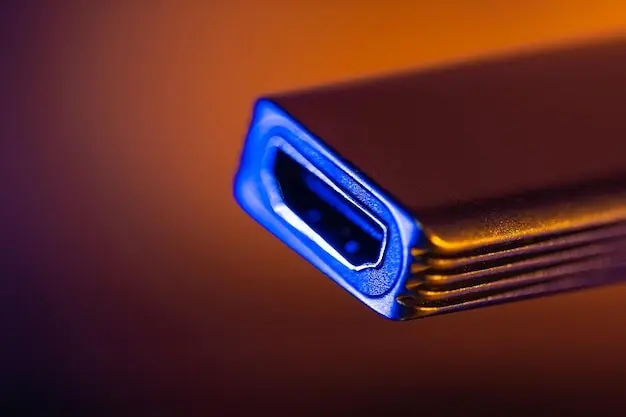
Cables dictate stability as surely as silicon. Certified, e-marker-equipped leads at appropriate lengths preserve signal integrity, reduce heat, and sustain charging wattage under load. Thoughtful routing, gentle bends, and labeled ends prevent mystery problems. An organized path from laptop to dock to monitors becomes the quiet infrastructure that turns daily work into flow.

Compatibility Across macOS, Windows, and Linux

Different operating systems negotiate displays, sleep, and security uniquely. macOS prefers native DisplayPort paths and shines in clamshell mode. Windows offers broad MST flexibility with driver nuances. Linux has surged with modern kernels and Wayland maturity. Predictable success emerges from tested combinations, current firmware, and a willingness to validate before scaling across a team.

Clamshell Mode and Sleep Reliability

Clamshell use stresses wake paths, USB enumeration, and monitor EDID handshakes. Keep docks on stable power, update GPU and dock firmware, and ensure external keyboards can wake hosts reliably. Tweak sleep timers conservatively. When wake gremlins appear, methodically test with one monitor, then two, and isolate whether cables, adapters, or drivers changed recently.

DisplayLink When You Need More Screens

When native GPU paths run out, DisplayLink can add monitors through USB, trading some CPU cycles for flexibility. It excels for dashboards, chat, or document windows, less so for color-critical or high-motion tasks. Maintain updated drivers, watch battery impact on travel days, and mix native plus DisplayLink outputs to balance clarity and capacity.

Future-Proofing and Smart Upgrades

Technology rarely stands still. Plan for USB4 version 2 bandwidth, DisplayPort 2.1 headroom, and higher Power Delivery ceilings that support hungry workstations. Favor modular monitor arms, replaceable cables, and firmware-updatable docks. By sequencing upgrades intentionally, you preserve confidence, spread costs, and ensure your desk evolves gracefully rather than collapsing into yet another chaotic rebuild.
Kentodavosirasentolivo
Privacy Overview

This website uses cookies so that we can provide you with the best user experience possible. Cookie information is stored in your browser and performs functions such as recognising you when you return to our website and helping our team to understand which sections of the website you find most interesting and useful.