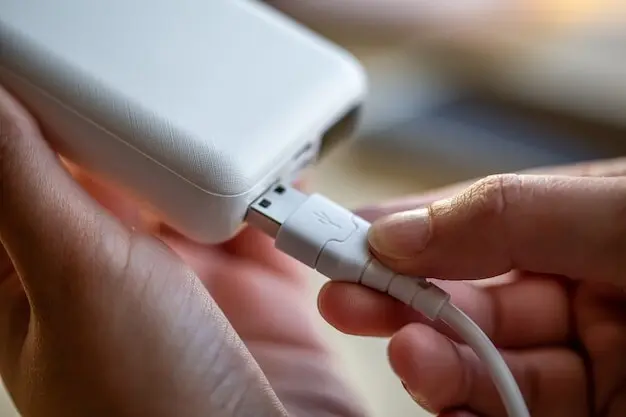
Make the Jump to USB‑C with Confidence

We’re focusing on switching from legacy connectors to USB‑C, sharing practical migration tips and clear compatibility guidance. From ports and protocols to cables, chargers, and firmware, you’ll learn what matters, avoid expensive surprises, and help teammates transition smoothly across laptops, phones, and peripherals.

Assess What You Have Before You Unplug

Before replacing connectors, map every device, port, and cable in use, including power needs, data speeds, display resolutions, network requirements, and any specialized dongles quietly holding your workflows together. Identify critical users and downtime windows. A thorough snapshot turns unknowns into a checklist, guiding procurement, timelines, testing priorities, and expectations for a controlled, low‑risk transition to modern connectivity.

Create a precise inventory

Build a living spreadsheet listing port types, cable lengths, charger wattages, data standards, and serial numbers across laptops, monitors, docks, and peripherals. Photograph complex desks for future reference. Note ownership, usage hours, and replacement cycles. This clarity prevents oversights, aligns stakeholders, and exposes quick consolidation wins you can deliver early to build momentum and trust.

Rank real‑world workflows

Interview teammates to discover which peripherals are essential, occasional, or replaceable. Separate mission‑critical displays, storage, and networking from conveniences and clutter. Ranking concrete workflows lets you stage the rollout, ensure adapters exist before a desk changes, and communicate timelines that protect productivity for power users without blocking quick wins elsewhere.
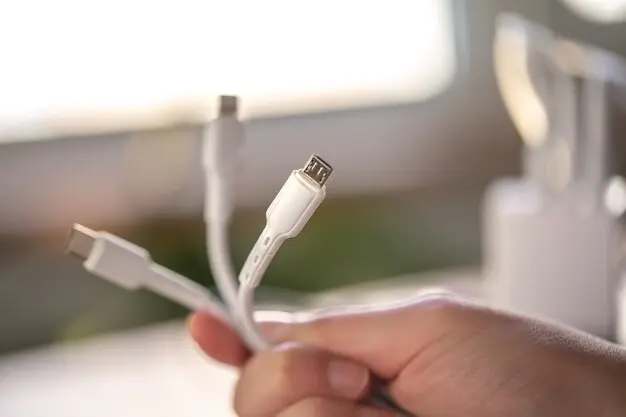
Decode Standards Without Getting Lost
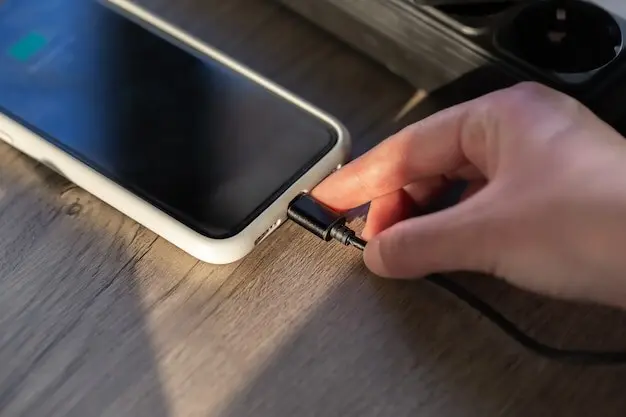
USB‑C is a connector shape, not a promise. Capabilities ride atop it: USB 2.0 at 480 Mbps, USB 3.2 Gen 1 at 5 Gbps, Gen 2 at 10 Gbps, USB4 at 20 or 40 Gbps, and Thunderbolt 3/4 at 40 Gbps. Understanding labels prevents mismatched expectations, simplifies purchasing conversations, and keeps your migration on a verifiable, testable track.

Know your data lanes

Map your storage and network needs against actual link speeds. External SSD workflows thrive on 10 Gbps or 20 Gbps, while archival printers survive at USB 2.0. Thunderbolt 3/4 enables PCIe devices and daisy‑chaining at 40 Gbps. Publish a simple capability matrix so nobody expects workstation‑class throughput from bargain USB‑C hubs or legacy cables.

Power Delivery in practice

USB Power Delivery negotiates voltage and current automatically, reaching 100 W under PD 3.0 and up to 140–240 W with PD 3.1 Extended Power Range on supported gear. E‑marked cables are required above 3 A. Right‑size chargers to device draw, allow headroom, and verify that docks pass sufficient power when multiple peripherals tax the bus.

Trust e‑marked cables for higher power and speed

Use e‑marked cables for 100 W or greater charging and for 10–40 Gbps data. Short, certified cables improve signal integrity for demanding displays and SSDs. Retire mystery leads and charge‑only cords. Maintain a vetted list with purchase links, lengths, and use cases, and bake cable checks into help‑desk scripts to accelerate troubleshooting.

Active versus passive video paths

Understand when you need active adapters to convert DisplayPort Alt Mode to HDMI at high refresh rates or long distances. Passive adapters often suffice at 4K60, but not always. Test with your actual monitors, color profiles, and cable runs, then document approved combinations to prevent last‑minute meeting room surprises or color‑critical production hiccups.

Label, test, and rotate stock

Color‑code and barcode your cables and adapters by capability—data rate, wattage, and video support—so users grab the right one instantly. Quarterly test spares under load with real workflows. Retire questionable pieces, replenish from approved vendors, and keep a travel pool to prevent personal gear from silently degrading team reliability.

Pick Cables, Docks, and Adapters That Truly Match

Not all USB‑C gear is equal. Cable length, conductor quality, and the presence of an e‑marker chip influence data speed and safe charging. Docks differ in bandwidth allocation, display engines, and driver requirements. Establish buying standards, label everything, and retest quarterly so replacements maintain reliability as your environment evolves and expands.

Tame Compatibility Through Updates and Settings

Great hardware stumbles without current firmware, drivers, and sane defaults. BIOS options can govern USB‑C power sharing, boot behavior, and Thunderbolt security. Operating systems add USB4, DisplayPort, and PD refinements with each release. Standardize update cadences, validate on a staging bench, and publish a one‑page checklist users can follow confidently.

Firmware and driver cadence

Schedule monthly reviews for laptop BIOS, Thunderbolt NVM, GPU, and dock firmware. Bundle driver updates for network, storage, and display. Test with your heaviest workloads—4K timelines, VM builds, large syncs—before broad rollout. Document known‑good versions and rollback steps so troubleshooting remains calm, fast, and repeatable under pressure.

Dock and hub interoperability testing

Mix vendors deliberately in a lab: pair each laptop generation with multiple docks, long cables, and dual displays. Track anomalies like wake‑from‑sleep failures, Ethernet drops, or USB bus resets. Escalate with reproducible logs. Publish an interoperability matrix so procurement stays within the green zone and support avoids guesswork during outages.

Mobile OTG and accessories

For tablets and phones, validate USB‑C OTG behavior with microphones, card readers, and wired Ethernet. Confirm apps request permissions correctly, power draw remains safe, and hot‑plugging is stable. Provide a compact, labeled kit for creators and field staff, and a short guide explaining limitations, battery impacts, and recommended troubleshooting steps.

Power Planning That Prevents Headaches

Consolidating power is liberating—if you match wattage, ports, and cables intelligently. One well‑chosen charger can replace several bricks, but only when peak draw, negotiated profiles, and thermal design are respected. Build clear charging policies for desks, hot‑desks, meeting rooms, and travel, and your users will simply plug in and smile.

Field Notes from Successful Transitions

Stories turn checklists into intuition. We’ve seen lean teams modernize gracefully by piloting, documenting, and communicating early. Wins include lighter bags, fewer support tickets, and faster workstations. Pitfalls cluster around cheap cables, untested docks, and skipped updates. Learn from real migrations, then share your own experience so others benefit too.

Support, Training, and Sustainability That Endure

Great migrations stick when support is simple, learning is memorable, and old gear is responsibly retired. Provide fast guidance, brief refreshers, and transparent recycling. Invite questions, collect feedback, and keep your approved list current. Subscribe for updates, share challenges in the comments, and help shape our next deep‑dive guides together.

Help desk scripts that resolve fast

Standardize first steps: confirm cable type, length, and e‑marking; reseat connectors; test with a known‑good port; and check power draw. Add QR codes linking to visual guides. Scripts reduce variance between agents, speed resolutions, and create cleaner logs that vendors can actually use when you escalate stubborn issues.

Micro‑lessons users remember

Offer five‑minute trainings covering USB‑C labels, wattage basics, and which adapters drive dual displays. Pair them with desk cards and short videos. Celebrate quick wins publicly. When users understand why a cable matters, they self‑serve more confidently and file clearer tickets, turning support into partnership instead of firefighting.

Recycle responsibly and track impact

Work with certified e‑waste partners to retire obsolete chargers, hubs, and cables. Record quantities, materials, and avoided emissions to share in sustainability reports. Donate safe, working gear to nonprofits where appropriate. Responsible off‑ramping frees storage, reduces clutter, and turns a necessary cleanup into a measurable, positive community impact.
Kentodavosirasentolivo
Privacy Overview

This website uses cookies so that we can provide you with the best user experience possible. Cookie information is stored in your browser and performs functions such as recognising you when you return to our website and helping our team to understand which sections of the website you find most interesting and useful.